

Announcement Email Dashboard
Overview
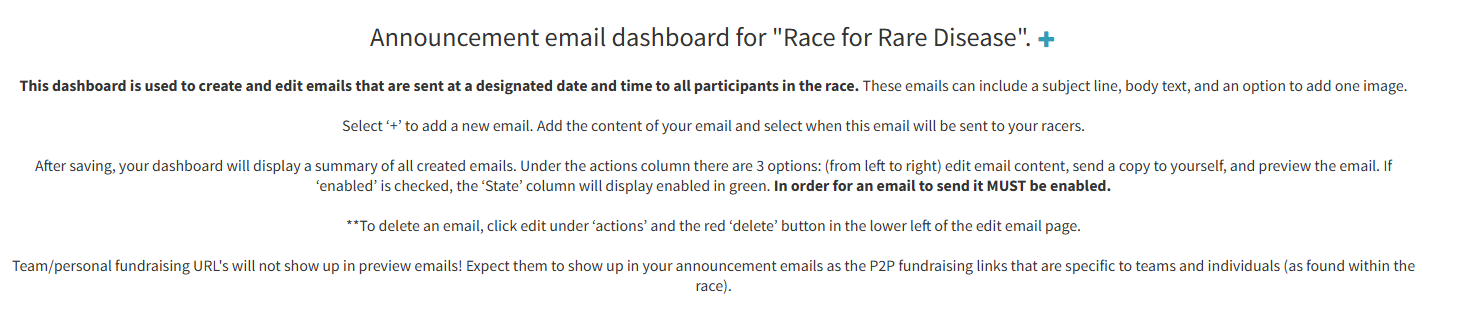
The Announcement Email dashboard lets you create and schedule emails sent to all participants in your race at a designated date and time. Use it for race kickoffs, mid-race encouragement, fundraising reminders, or any custom communication.
Creating an Email
Click the + button next to the dashboard title to add a new email. Fill in the fields and save.
Email Fields
| Field | Details |
|---|---|
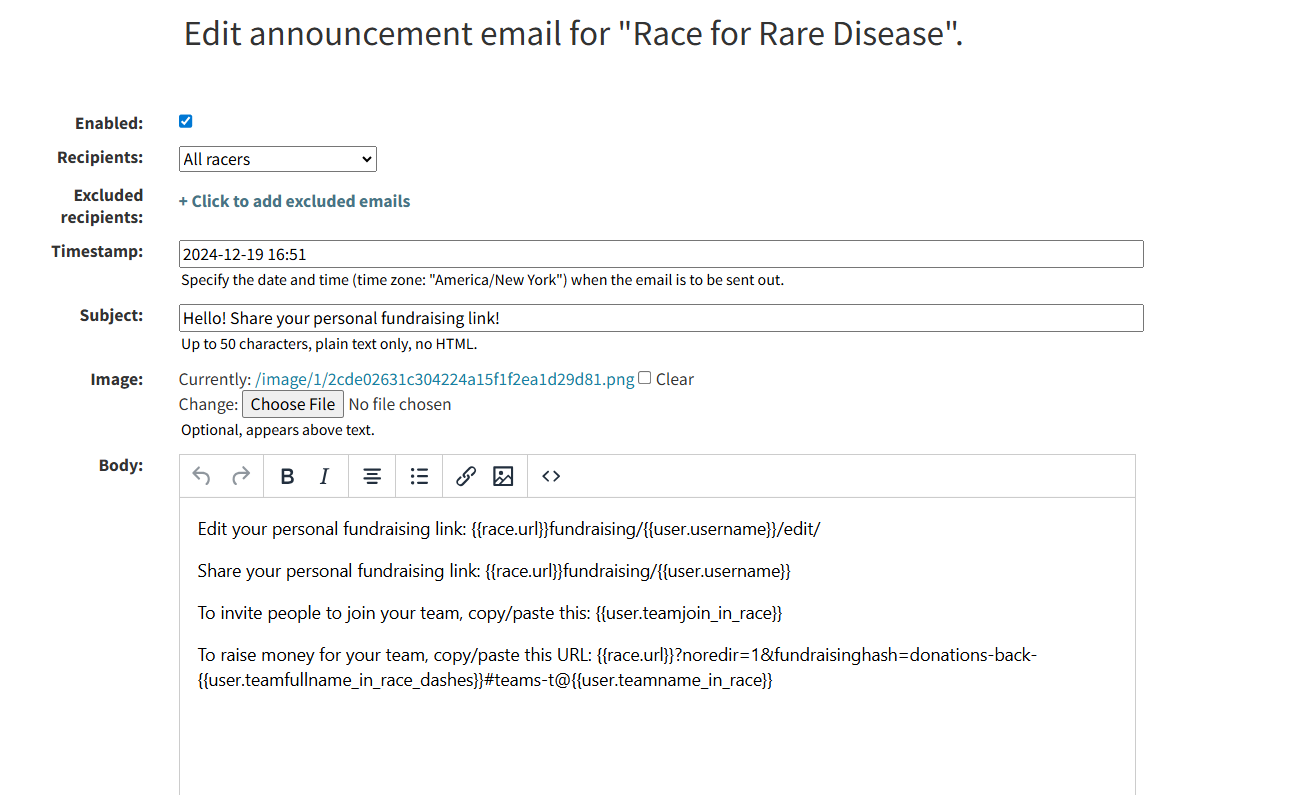
| Enabled | Email will only send if enabled is checked. The State column shows green when active. Set to disabled for drafts or test emails that should not go to all racers. |
| Recipients | Choose from: All racers, All team captains, Racers with activity (only those who have logged at least one activity), or specific teams. |
| Exclusion list | Enter email addresses (one per line) to exclude specific racers from receiving the email. Useful for filtering out individuals who should not receive a particular message. |
| Timestamp | Date and time to send in Eastern Standard Time (EST). Format: YYYY-MM-DD HH:MM. If you are in a different timezone, convert to EST — a timestamp that has already passed in EST will be rejected. |
| Subject | Up to 50 characters, plain text only, no HTML. |
| Image | Optional image that appears above the email body text. |
| Body | Rich text editor with bold, italic, alignment, lists, links, images, and HTML source view. |
Template Variables
Use these variables in the email body — they auto-populate with each recipient's data:
| Variable | Resolves to |
|---|---|
{{user.full_name}} |
Racer's full name |
{{user.username}} |
Recipient's username |
{{user.distance_in_race}} |
Racer's total miles logged (e.g., "12.5 miles") |
{{user.position_in_race}} |
Racer's current leaderboard position (e.g., "2nd") |
{{user.teamjoin_in_race}} |
Team join link for the recipient |
{{user.teamfullname_in_race_dashes}} |
Recipient's team name (hyphenated) |
{{user.teamname_in_race}} |
Recipient's team name |
{{race.url}} |
The race's URL |
Note: Team/personal fundraising URLs and personalized variables (distance, position) will not appear in preview emails. They are specific to each recipient and only render in the actual sent email.
Managing Emails
After saving, the dashboard shows a summary of all created emails. The Actions column provides three options (left to right):
- Edit — modify the email content
- Send copy to yourself (paper airplane icon) — sends a test copy to your email so you can preview how it looks in an actual inbox
- Preview — see a rendered preview in the browser
To delete an email, click edit under Actions, then click the red delete button at the lower left of the edit page.
Testing Before Sending
To safely test an email without sending it to all racers:
- Leave the Enabled checkbox unchecked (disabled emails won't send to racers)
- Click the paper airplane icon in the Actions column to send a test copy to yourself
- Review the test email in your inbox
- When satisfied, edit the email and check Enabled to activate it
Tip: An email must be enabled to send. If the State column doesn't show green, the email won't go out. Use this to your advantage for drafting and testing.
Next Steps
Email Notifications
How automated daily emails and nudges work.
Sponsor Dashboard
Overview of all available dashboard tools.
Eventpage Dashboard
Customize your race's event landing page.
Contact support if you have questions.